Software Installation Guide
- WINDOWS
- MAC OS
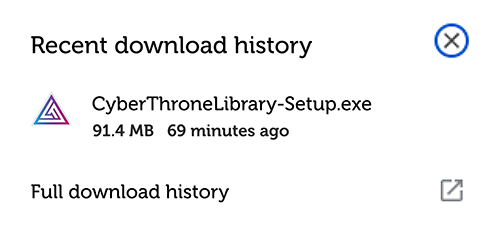
Locate the downloaded file
Open your Downloads folder. You'll find a file named
CyberThroneLibrary - Setup.exe. This is the installer.
Run the installer
Double-click the .exe file to start the installation. Windows may ask for
confirmation before it opens.
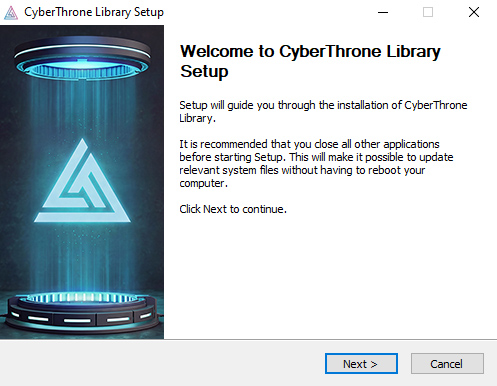
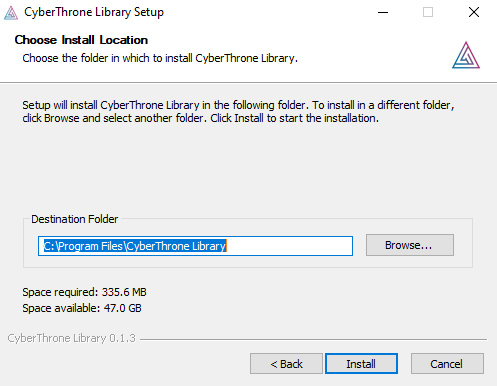
Follow the setup wizard
- Click Next on the welcome screen
- Choose an install location and click Install
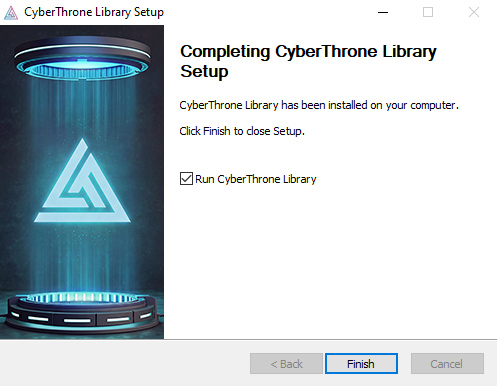
Finish and launch
Once complete, click Finish. If the option Run CyberThrone Library is checked, the software will open immediately. Otherwise, find it on your Desktop or in the Start Menu.
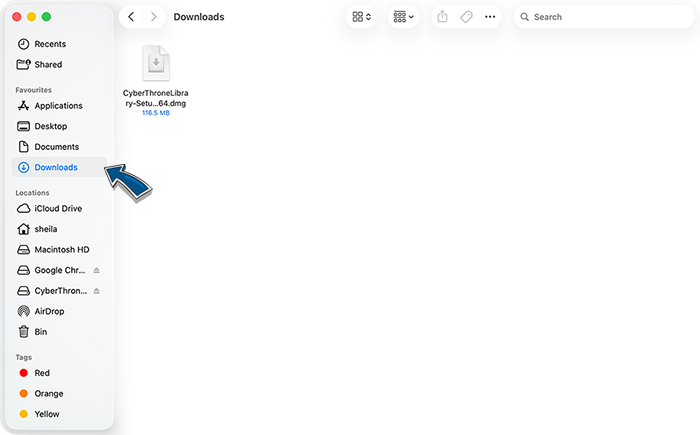
Locate the downloaded file
Open your Downloads folder. You'll find a file named
CyberThroneLibrary - Setup.dmg.
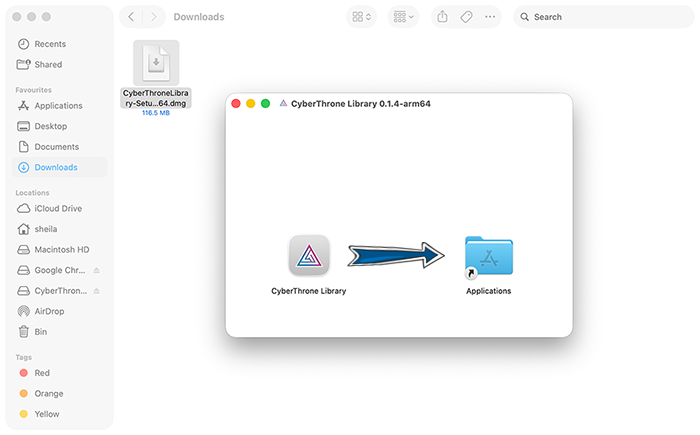
Run the installer
Double-click the .dmg file and move the CyberThrone Library icon in the application folder. This Process makes the software executable.
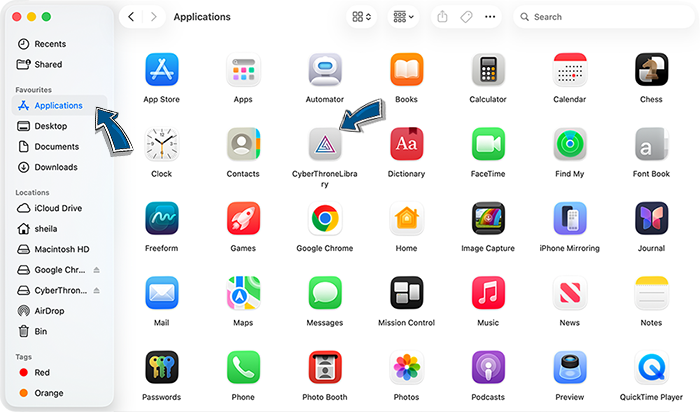
Open the application
Navigate to the Application folder where you can locate our file. If you can't find the icon, you can use the searchbar to find it by typing CyberThrone Library.